What Are Google Maps Lists and Why Should You Care?
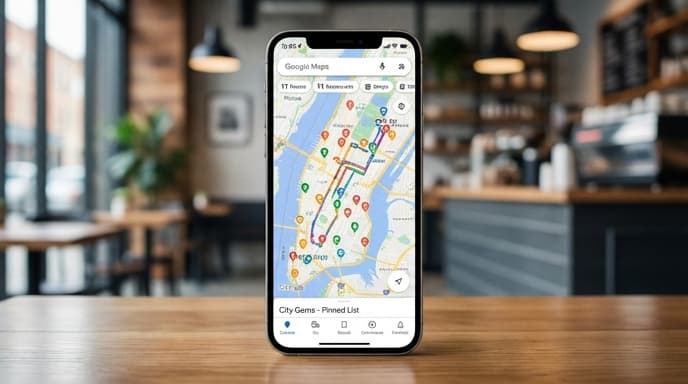
At its core, Google Maps Lists is a simple feature that lets you save places into custom-named groups. You can create a list for 'Must-Try Restaurants in Tokyo,' 'Paris Museums,' or 'Hiking Trails in Patagonia.' These saved places then appear as custom icons on your map, giving you a visual overview of your plans. It transforms Google Maps from a simple navigation tool into a dynamic, personalized travel guide.
Why Lists Are a Game-Changer for Travelers
Unlike a static spreadsheet or a list of bookmarks, Google Maps Lists are interactive and integrated directly into the tool you'll use to get around. Here's why they're so effective:
- Visual Planning: See where all your points of interest are located relative to each other. This helps you group activities by neighborhood and plan your days more efficiently.
- Collaboration: Share your list with travel companions and allow them to add their own suggestions. It's a perfect tool for group trip planning.
- Offline Access: Before you travel, you can download the map area for offline use. Your lists and saved places will still be visible, even without an internet connection.
- Centralized Information: Add personal notes to each saved location, like 'Reservation at 8 PM' or 'Try the pistachio croissant.'
Step-by-Step: Creating Your First Travel List
Getting started is incredibly simple. Follow these steps on your phone or desktop:
1. Find and Save a Place
Search for a location you want to visit, like a museum, restaurant, or landmark. Tap on the location to bring up its details, then tap the 'Save' button.
2. Create a New List
When you tap 'Save,' you'll be prompted to add it to an existing list (like 'Favorites' or 'Want to go') or to create a '+ New list.' Give your list a descriptive name, like 'Rome 2024 Itinerary.' You can also add a description for the list itself.
3. Add Notes and Customize
Once a place is in your list, you can add notes to it. This is perfect for reservation details, opening hours, or reminders. You can also change the icon for each list to easily differentiate between your 'Food' list and your 'Sights' list on the map.
Pro Tips for Power Users
- Use Emojis in List Titles: Add emojis like 🍝 for your food list or 🏛️ for your museum list to make them instantly recognizable.
- Create a 'Maybe' List: For places you're not sure about, create a separate list. This keeps your main itinerary clean but saves potential options.
- Share as 'View Only': If you've finalized the plan and don't want others making changes, you can share the list with 'view only' permissions.
Frequently Asked Questions
Can I use Google Maps Lists offline?
Yes. As long as you download the map of the area for offline use before you lose your connection, your saved lists and pins will be visible on the map.
How do I share a list with someone who doesn't have a Google account?
You can create a public link to your list. Anyone with the link can view it, even without logging in to Google.
Is there a limit to how many places I can add to a list?
While there isn't a widely publicized hard limit, lists can comfortably hold hundreds of places, which is more than enough for most trips.
Summary: Key Takeaways
- Google Maps Lists is a free, powerful tool for visually planning and organizing travel itineraries.
- It allows you to save, group, and add notes to locations on a personalized map.
- Lists can be shared for collaborative planning and accessed offline.
- Use different lists to categorize activities (e.g., food, sights, shopping) for better organization.
- This feature turns a navigation app into a comprehensive, interactive travel guide.